Categories
Intune / MEM Powershell SCCM / MECM

PSADT + ServiceUI + 0x8007FFFF

During application deployments, it is often necessary to inform active users of an ongoing installation. Many endpoint admins accomplish this by using PSADT with ServiceUI.

The combination facilitates a user interface if an explorer.exe process is running.

However, ServiceUI’s functionality relying on an active user session can lead to failures if no user is logged-in.

The script below solves this by:

1. Checking for an active user session.
2. If a user is present, running Deploy-Application.exe via ServiceUI.
3. If no user is present, running Deploy-Application.exe directly.”

Add the script to root of your PSADT toolkit and use the following install command in Intune:
Powershell.exe -NoProfile -ExecutionPolicy Bypass -File .\DeployServiceUIOptional.ps1

Categories
Intune / MEM Powershell

User context installs via Intune

There are two contexts when installing applications: User and System. The application either installs within the USER’s profile such as %LocalAppData% or to a SYSTEM directory that everyone can access like %ProgramFiles%.

Recently I was informed that we would be using CollegeBoard’s Bluebook for testing. CollegeBoard apps haven’t been my favorite to work with in the past, but that’s another story. Looking over the application’s requirement page, it must be installed in user profiles with user given full read/write permission to the directory for auto updates.

Test silent install in a VM, update AppLocker policy if being used, gather uninstall information if written to the registry, and test silent uninstall in a VM.

Create a simple install.cmd file which contains the silent install command.

blank

Create a simple uninstall.cmd file which contains the silent uninstall command. More than likely the uninstall file will be located in the user’s profile. Use environment variables like %APPDATA%.

blank

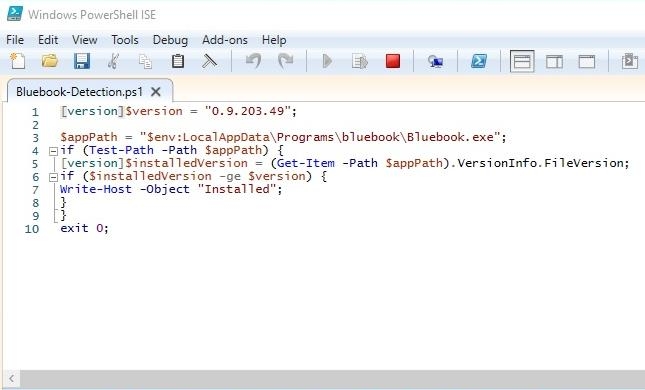
Create a detection script that will compare the file version of the application’s executable. The path will point inside of the user’s profile so of course we will use variables again. Feel free to use and modify the script below. Remember this is a powershell script, so you must environment variable use $env.

blank

Package these files up with Intune’s Win32 packager and deploy to your users.

Categories
Powershell SCCM / MECM

Patch BitLocker bypass security vulnerability

Microsoft has released a patch (KB5025175) to address CVE-2022-41099. This patch consist of a PowerShell that is to be used in conjunction with the latest Windows Safe OS Dynamic Update for your architecture and Windows version.

Many are annoyed that Microsoft released a PowerShell script instead of an actual Windows Update to fix this vulnerability. The patch can be easily applied via Config Manager (and also Intune). Here’s the quick and dirty way to deploy the fix. For simplicity sake, we will push this out as a program (package).

Copy the PowerShell script and Windows Safe OS Dynamic Update to your content share.

In MEMC, create a package with a standard program and source files pointing to the folder copied the script and file to.

Name the program Install with the command line below. Your packagepath will differ depending on the name of the Dynamic Update file you placed in your source folder along with the PowerShell script.

 "%Windir%\sysnative\WindowsPowerShell\v1.0\powershell.exe" -ExecutionPolicy Bypass -Command .\PatchWinREScript_2004plus.ps1 -packagePath "windows10.0-kb5021043-x64_efa19d2d431c5e782a59daaf2d.cab"
blank
blank

Estimated disk space should be 250MB and max run time 30 minutes.

blank

Distribute content and deploy the program to machines. Remember the dynamic update is specific to the running OS Version, so make sure your deploying to applicable machines.