Categories
Intune / MEM Powershell SCCM / MECM

PSADT + ServiceUI + 0x8007FFFF

During application deployments, it is often necessary to inform active users of an ongoing installation. Many endpoint admins accomplish this by using PSADT with ServiceUI.

The combination facilitates a user interface if an explorer.exe process is running.

However, ServiceUI’s functionality relying on an active user session can lead to failures if no user is logged-in.

The script below solves this by:

1. Checking for an active user session.
2. If a user is present, running Deploy-Application.exe via ServiceUI.
3. If no user is present, running Deploy-Application.exe directly.”

Add the script to root of your PSADT toolkit and use the following install command in Intune:
Powershell.exe -NoProfile -ExecutionPolicy Bypass -File .\DeployServiceUIOptional.ps1

Categories
SCCM / MECM

ADK 25398, Bitlocker failure

The release of Sept 2023 ADK was met with some backlash regarding the removal of VB script support. Although powershell has taken over, VB scripts are still used by many during OS deployment. In my environment, the ADK broke my hta configs for Lenovo BIOS configurations, MDT integrated gather step (I’ve been planning to move to powershell for this anyway), and bitlocker. Yes Bitlocker..?

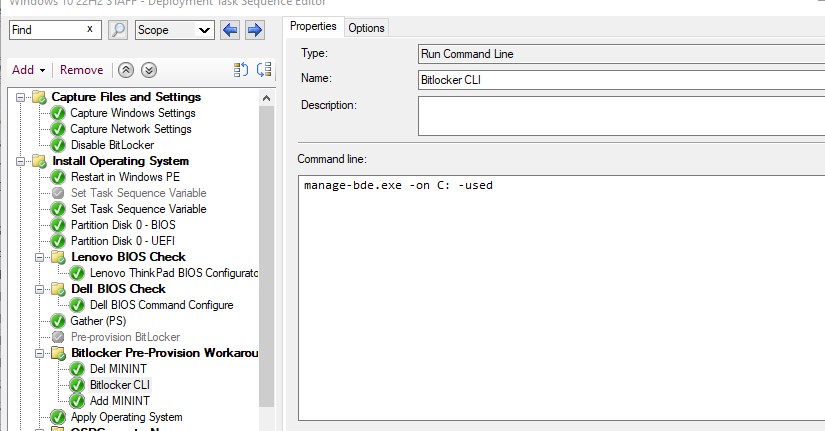
Failed to run command line ‘X: \windows\system32\manage-bde. exe -on C: -used’ with exit code 2147942402

(Install Operating System) has failed and the execution has been aborted. An action failed. Error 0x80004004


With SCCM 2211 and ADK 25398 I ran into the bitlocker pre-provision step failing. Giving me an exit code 0x80004004.

The workaround Microsoft has posted on the MS Learn page dif not correct the issue. This seems to be a different bitlocker issue. In my case Bitlocker doesn’t seem to have issue taking ownership of the TPM.

This workaround however is working:

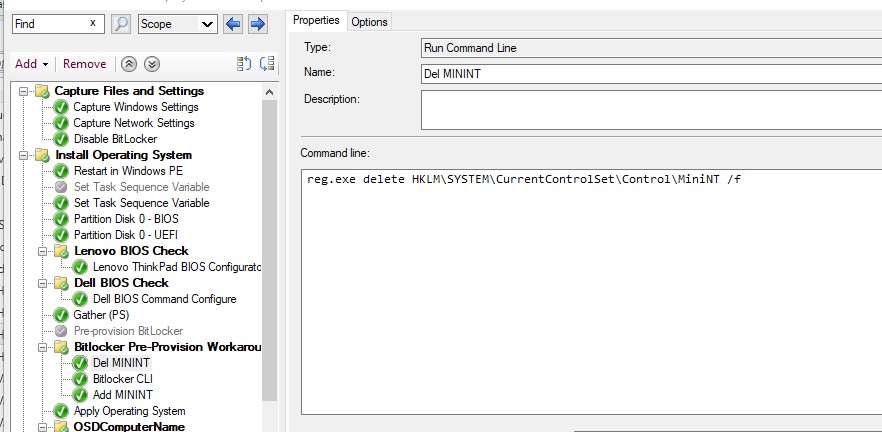
1. Disable your current Bitlocker Pre-provision step.

2. Create a new group

3. Add 3 new run command steps.

4. The first new run command step should delete the registry key. reg delete HKLM\SYSTEM\ CurrentControlSet\Control\MiniNT /f

blank

5. The second new run command step should pre-provision Bitlocker. Customize the command to match your encryption requirement.

blank

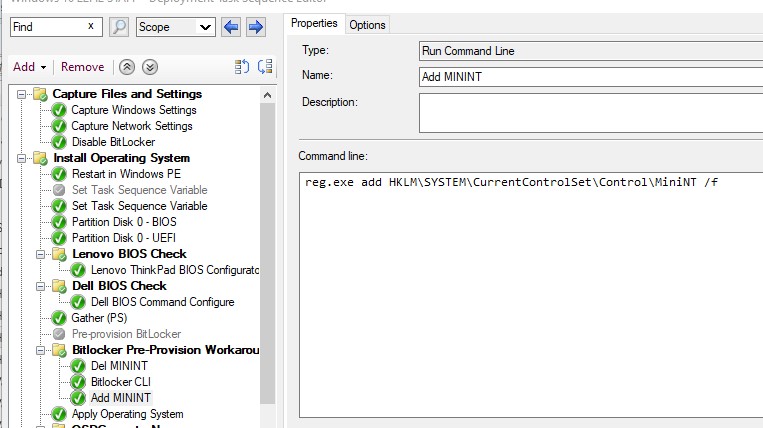
6. The third run command step will recreate the registry key we deleted in the previous step. reg.exe add HKLM\SYSTEM\CurrentControlSet\Control\MiniNT /f

blank

The MiniNT key is interesting. When present it basically kicks Windows into WinPE mode. What we’re doing is taking the OS out of WinPE mode temporarily, running the expected Bitlocker command, and throwing the machine back into WinPE mode. You may ask, “why not use the built-in pre-provision step in-between the registry edits?” When the pre-provision step is executed it will determine it’s not in WinPE mode, and will execute a different command which will fail.

Categories
SCCM / MECM

2012 R2 no more

Here are tips for upgrading your Windows Server 2012 R2 boxes, specifically SCCM.

1. Snapshot/Backup your VM.

2. Apply your Windows and SQL updates.

3. According to Microsoft, Windows Server 2012 R2 can be upgraded directly to Windows Server 2019. From 2019 you can upgrade to Windows Server 2022. Some claim you can go directly from Windows Server 2012 R2 to 2022, but I’m sticking to Microsoft’s recommendation when it comes to in-place upgrades.
https://learn.microsoft.com/en-us/mem/configmgr/core/servers/manage/upgrade-on-premises-infrastructure

4. Uninstall System Center Endpoint Protection prior to upgrading. Windows Defender is included in later Windows Server releases.

5. Uninstall Windows Management Framework 5.X (KB3191565) prior to upgrading to avoid WMI repository.

6. Do not uninstall WSUS role or your Software Update Point. Instead, after the upgrade run WSUSUTIL Postinstall

“C:\Program Files\Update Services\Tools\wsusutil.exe” postinstall SQL_INSTANCE_NAME=”SQLSERVER\SQLINSTANCE” CONTENT_DIR=E:\WSUS

7. After upgrade is complete, install Windows updates.

8. Check SCCM services
9. Run a site reset


If upgrade fails because corrupted component store
Dism restorehealth from install media instead of SxS

One issue I ran into was the upgrade failing even after dism restorehealth repaired successfully. Turned out AppRepository was corrupted. This was confirmed by simply running Get-AppxPackage.

I fixed this by running command prompt as system (Psexec.exe -s -i cmd.exe) and deleting the files within %SYSTEMDRIVE%\ProgramData\Microsoft\Windows\AppRepository. Simply reboot and Windows will rebuild the AppRepository database files.

Categories
Powershell SCCM / MECM

Patch BitLocker bypass security vulnerability

Microsoft has released a patch (KB5025175) to address CVE-2022-41099. This patch consist of a PowerShell that is to be used in conjunction with the latest Windows Safe OS Dynamic Update for your architecture and Windows version.

Many are annoyed that Microsoft released a PowerShell script instead of an actual Windows Update to fix this vulnerability. The patch can be easily applied via Config Manager (and also Intune). Here’s the quick and dirty way to deploy the fix. For simplicity sake, we will push this out as a program (package).

Copy the PowerShell script and Windows Safe OS Dynamic Update to your content share.

In MEMC, create a package with a standard program and source files pointing to the folder copied the script and file to.

Name the program Install with the command line below. Your packagepath will differ depending on the name of the Dynamic Update file you placed in your source folder along with the PowerShell script.

 "%Windir%\sysnative\WindowsPowerShell\v1.0\powershell.exe" -ExecutionPolicy Bypass -Command .\PatchWinREScript_2004plus.ps1 -packagePath "windows10.0-kb5021043-x64_efa19d2d431c5e782a59daaf2d.cab"
blank
blank

Estimated disk space should be 250MB and max run time 30 minutes.

blank

Distribute content and deploy the program to machines. Remember the dynamic update is specific to the running OS Version, so make sure your deploying to applicable machines.

Categories
Intune / MEM SCCM / MECM

Revoked workloads

Background

Approximately a year before the pandemic started, I worked with Microsoft Fast Track to set up my organization’s Intune environment and co-management for our laptops. This went well and functioned as expected in my testing. I soon started asking my higher-ups if we could work on migrating group policies to configration profiles and start utilizing Intune capabilities. There was no interest and Intune fell by the wayside besides me using it to deploy required apps.

Fast forward to COVID-19. No always-on VPN, no cloud management gateway, but we did have a neglected Intune environment. There was one problem; devices had their Intune workloads revoked. This was an undocumented result of Configuration Manager clients not communicating with SCCM for a while. I convinced management that cloud management gateway was much needed during these times. After our cloud management gateway was setup and working, we needed to get the co-managed clients talking to their management point again. They don’t know about the new CMG of course and with Intune workloads being revoked, the only function that worked in Intune is.. PowerShell scripts. 😃

Solution

To get the endpoints back functioning, Intune workloads need to be reset and SCCM client with the CCMHostname and certificates deployed. Deploy the new SCCM app first, so the endpoint will install right after the workloads are reset.

To reset the workloads via Intune, deploy a PowerShell script that changed the flag value in the registry and restart Intune’s service. The value is the sum of the Intune workloads.

Set-ItemProperty -Path HKLM:\SOFTWARE\Microsoft\CCM -Name CoManagementFlags -Value 111
Restart-Serviec IntuneManagementExtension -Force

CapabilityWorkload
8193All Workloads with SCCM
2Compliance Policies
4Resource access Policies
8Device Configuration
16Windows Updates Policies
4128Endpoint Protection
64Client Apps
128Office Click-to-Run Apps
Current (Configuration Manager 2111 and Later)
CapabilityWorkload
1All Workloads with SCCM
2Compliance Policies
4Resource access Policies
8Device Configuration
16Windows Updates Policies
32Endpoint Protection
64Client Apps
128Office Click-to-Run Apps
Legacy (Configuration Manager 2107 and previous)

If you want to verify if the endpoint has been configured for the CMG, look in the registry for CMGFQDN under the HKLM:\Software\Microsoft\CCM key.