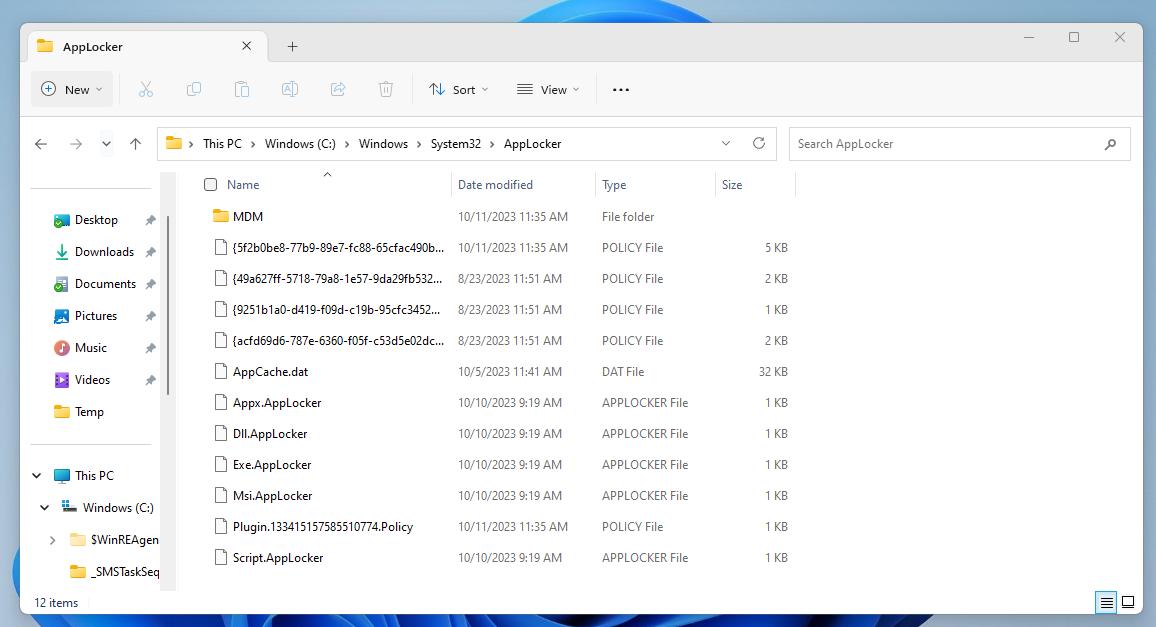
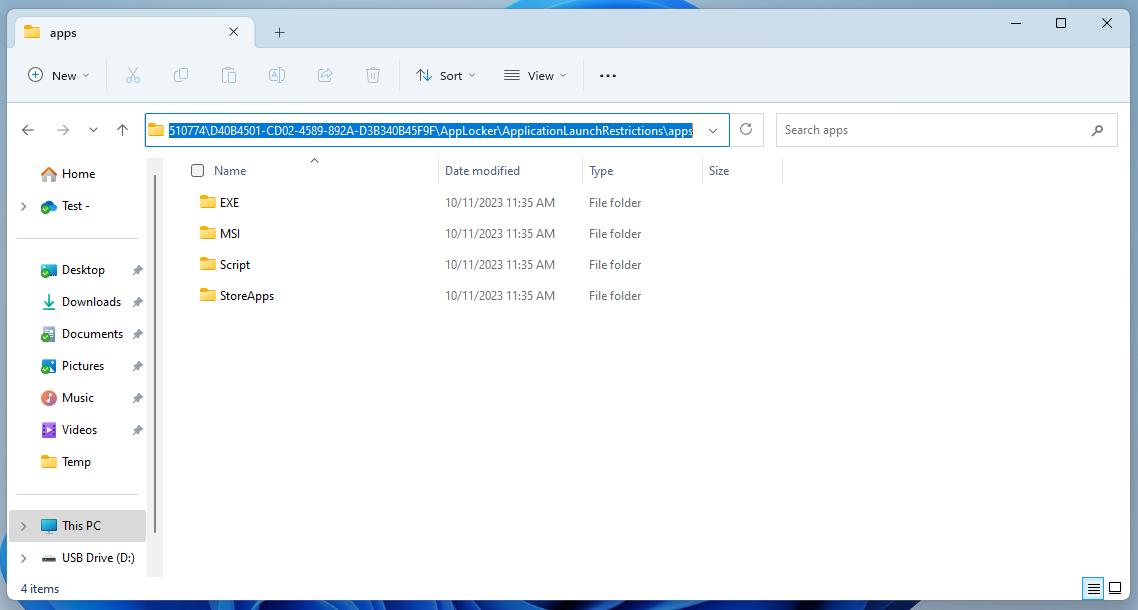
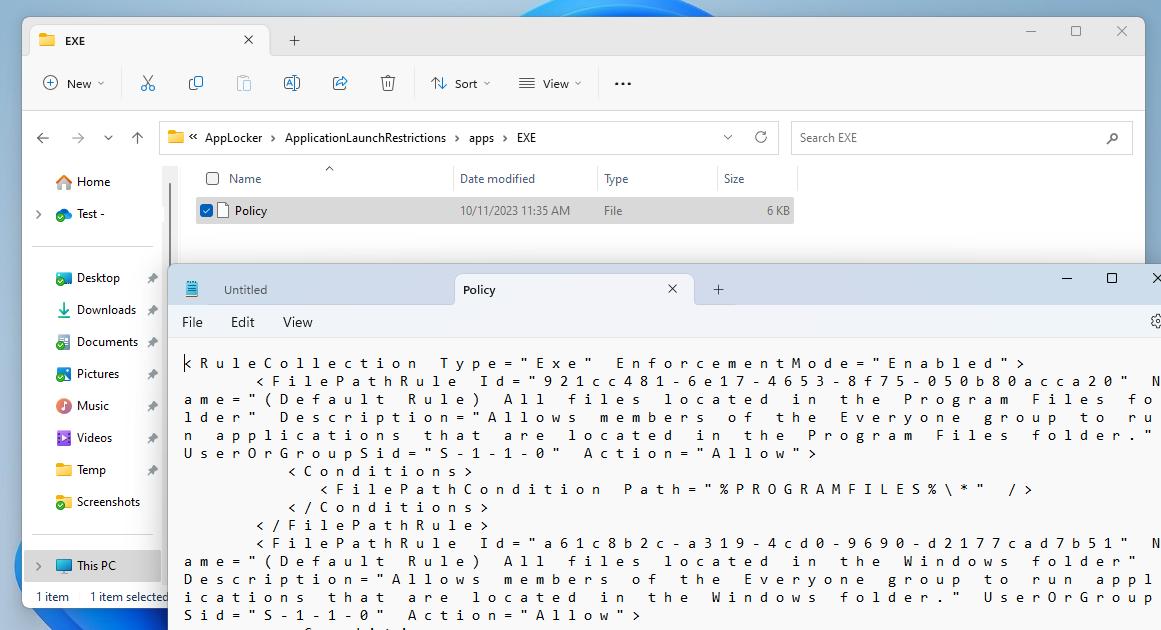
Without prior experience with AppLocker policies, one may assume launching gpedit.msc would show the AppLocker policies pushed out via Intune. That is not the case. To find the policy files take a look in C:\Windows\System32\AppLocker. Notice files with AppLocker file extension and the folder named “MDM”. Digging through the folder will reveal the policies pushed from Intune. The “Policy” files contains the configuration from the CSP.
Month: January 2024
SID 500 LAPS
This isn’t a rant, but more so me explaining why I’ve chosen this route in basic English. Before we began assigning random passwords to our Administrator accounts using solutions like Local Administrator Password Solution (LAPS), it was encouraged to disable the built-in Administrator account. Now that we have such solutions that are easy to use and more secure, should we still disable the built-in Administrator account?
The latest [Windows] LAPS has been a hit. It’s been easy to use since it’s baked into the latest versions of the Windows operating systems and able to work with Entra and Active Directory joined devices. The hardest decision most have is whether to use the built-in Administrator account or create another account. This has been the debate, because we’ve been told to not use the built-in Administrator account forever. Should we still be doing this?
What’s really the functional benefit now? I can’t really argue why we should continue with this practice. With Windows LAPS you are able use secure passwords that are unique to each machine. One feature of Windows LAPS is the ability to have the password change automatically after its used.
When using a custom Administrator account, it is tracked by the name. If the account is renamed Windows LAPS can no longer manage it. One of the security risks with using the built-in Administrator account was it’s well known SID. But this SID is also how Windows LAPS tracks the account meaning if the account was renamed LAPS is able to continue managing it. If you are using Windows LAPS you are not concerned
Windows LAPS should be thought of as a disaster recovery solution. Technicians should have another account they use for day-to-day administration. Renaming the built-in Administrator account has no effect on Windows LAPS ability to manage the password. The built-in Administrator account also can’t be locked out. Windows LAPS can also manage the account even if it’s disabled, so if you want LAPS to manage the password but leave it disabled until you need it, that is an option.
So…
Is it insecure? Should we be updating these security baselines? Does this topic require reevaluating?
ADK 25398, Bitlocker failure
The release of Sept 2023 ADK was met with some backlash regarding the removal of VB script support. Although powershell has taken over, VB scripts are still used by many during OS deployment. In my environment, the ADK broke my hta configs for Lenovo BIOS configurations, MDT integrated gather step (I’ve been planning to move to powershell for this anyway), and bitlocker. Yes Bitlocker..?
Failed to run command line ‘X: \windows\system32\manage-bde. exe -on C: -used’ with exit code 2147942402
(Install Operating System) has failed and the execution has been aborted. An action failed. Error 0x80004004
With SCCM 2211 and ADK 25398 I ran into the bitlocker pre-provision step failing. Giving me an exit code 0x80004004.
The workaround Microsoft has posted on theĀ MS Learn page dif not correct the issue. This seems to be a different bitlocker issue. In my case Bitlocker doesn’t seem to have issue taking ownership of the TPM.
This workaround however is working:
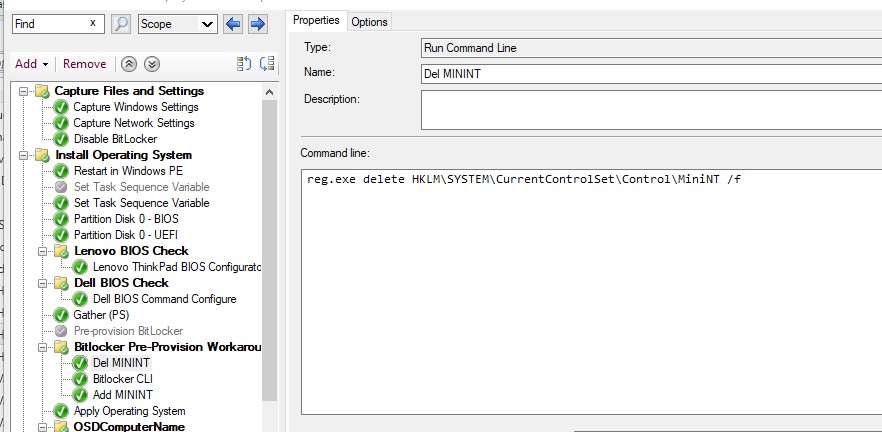
1. Disable your current Bitlocker Pre-provision step.
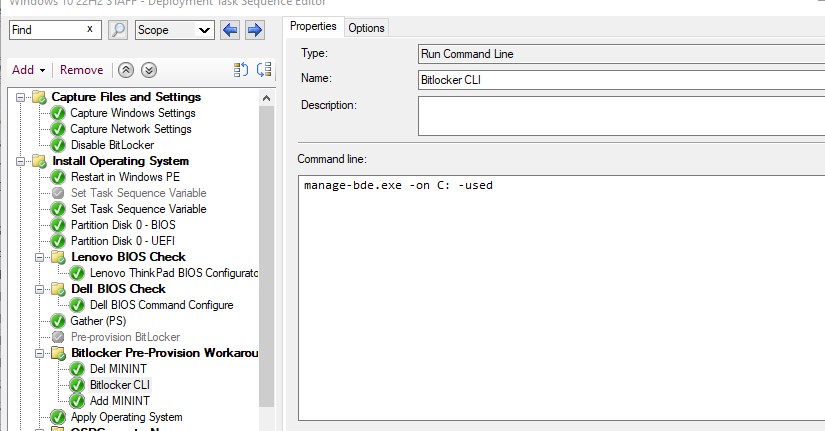
2. Create a new group
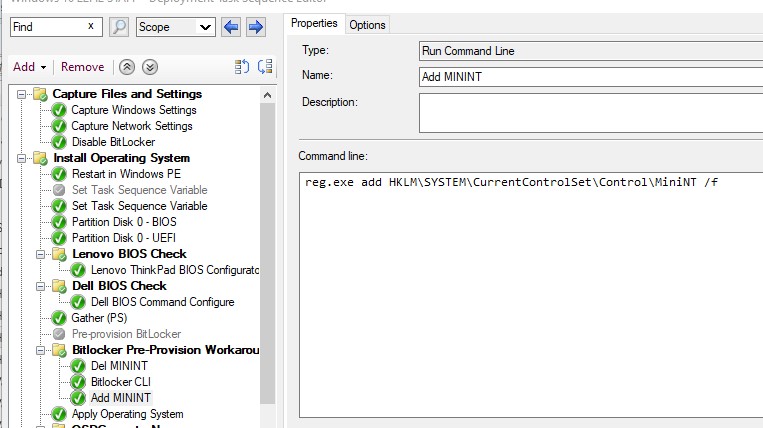
3. Add 3 new run command steps.
4. The first new run command step should delete the registry key. reg delete HKLM\SYSTEM\ CurrentControlSet\Control\MiniNT /f
5. The second new run command step should pre-provision Bitlocker. Customize the command to match your encryption requirement.
6. The third run command step will recreate the registry key we deleted in the previous step. reg.exe add HKLM\SYSTEM\CurrentControlSet\Control\MiniNT /f
The MiniNT key is interesting. When present it basically kicks Windows into WinPE mode. What we’re doing is taking the OS out of WinPE mode temporarily, running the expected Bitlocker command, and throwing the machine back into WinPE mode. You may ask, “why not use the built-in pre-provision step in-between the registry edits?” When the pre-provision step is executed it will determine it’s not in WinPE mode, and will execute a different command which will fail.