Categories
Intune / MEM Powershell SCCM / MECM

PSADT + ServiceUI + 0x8007FFFF

During application deployments, it is often necessary to inform active users of an ongoing installation. Many endpoint admins accomplish this by using PSADT with ServiceUI.

The combination facilitates a user interface if an explorer.exe process is running.

However, ServiceUI’s functionality relying on an active user session can lead to failures if no user is logged-in.

The script below solves this by:

1. Checking for an active user session.
2. If a user is present, running Deploy-Application.exe via ServiceUI.
3. If no user is present, running Deploy-Application.exe directly.”

Add the script to root of your PSADT toolkit and use the following install command in Intune:
Powershell.exe -NoProfile -ExecutionPolicy Bypass -File .\DeployServiceUIOptional.ps1

Categories
Intune / MEM

Building a working Kiosk

Intune has the ability to provision Kiosk mode on Windows devices. There are 2 available modes; single app or multi-app. This post will focus on single app mode, but the logic applies for both.

Kiosk mode was something I’ve previously done using provisioning package. Downside of using provisioning packages comes into play when something needs to be changed. With Intune, however, you can configure changes from the portal and sync them down.

Something else that is a plus with a Intune is Autopilot, more importantly for Kiosks, self-deploying Autopilot. Thats right. You can take a Windows device out the box, power it up with an network connection, and it will automatically enroll itself and apply its configuration.

To begin I will assume you are familar with Autopilot and have devices registered. These devices will require TPM 2.0 in order for Self-Deploying mode to function.

  1. Create a self-deploying Autopilot deployment profile and deploy it to your machines you want to be kiosk.blank2. In Configuration Profile, create a Kiosk profile type from Templates. This basically will set what your kiosk displays, e.g. website. If you want to display a Win32App or multiple apps, you must use Multi app kiosk mode, but mine will be displaying a webpage. Deploy this profile to your Kiosk group.blankWord to the wise: The options are pretty self-explanatory, but User Logon Type “Auto Logon” can be sensitive. This creates a user named “KioskUser0” with a blank password. The auto logon function can be broken by different policies. I’ve learned to keep the number of policies and profiles applied to Kiosk machines to a minimum. My kiosks only receive the configurations seen on this page along with; LAPS, our Root CA cert, and Wi-Fi. By all means apply what you need, but I suggest KISS (Keep it stupid simple).
  2. Create another Configuration Profile that will contain several settings from the Settings catalog. These settings will deal with power settings and such. I expected some of these to be configured by the Kiosk template, but I also understand why the separated it out. Lets start by configuring the System > Power Management settings in Administrative Templates:
  • Under Hard Disk Settings,
    • Enable “Turn off the Hard Disk” for both plugged in and battery. Set the values to 0.
  • Under Sleep Settings
    • Enable “Specify the system hibernate timeout” for both plugged in and battery. Set the values to 0.
    • Enable “Specify the system sleep timeout” for both plugged in and battery. Set the values to 0.
    • Disable “Require a password when a computer wakes” for both plugged in and battery.
  • Under Video and Display Settings
    • Enable “Turn off the display” for both plugged in and battery. Set the values to 0.
  • Lets navigate out of Administrative Templates to Power.
    • “Lid Close Action” for both plugged in and battery to Take No Action.
    • Set “Select Power Button” action to Take No Action.
    • Set “Select Sleep Button” action to Take No Action.

Extra pre-caution. Some kiosk devices may be used by end users who AAD credentials. To prevent them from logging I add an additional settings.

  • Under User Rights
    • Select Allow Local Log On. Add the follow SID: *S-1-5-113

This will only allow local accounts to log in. Use a LAPS account or create another local user if needed.

  • Under Task Manager
    • Select and Block “Allow End Task”.

Save this profile and deploy it to your Kiosk devices.

4. Create a simple powershell one-liner to disable the KioskUser0 from being able to change its password. Upload the powershell script and deploy it in system context to your Kiosk devices.

blank

5. Power up your Windows devices that you’ve assigned the self deploying profile. Make sure they have a network connection, and make sure you’ve deployed a wireless profile if the device will use a wireless connection in the field.

Categories
Intune / MEM Powershell

User context installs via Intune

There are two contexts when installing applications: User and System. The application either installs within the USER’s profile such as %LocalAppData% or to a SYSTEM directory that everyone can access like %ProgramFiles%.

Recently I was informed that we would be using CollegeBoard’s Bluebook for testing. CollegeBoard apps haven’t been my favorite to work with in the past, but that’s another story. Looking over the application’s requirement page, it must be installed in user profiles with user given full read/write permission to the directory for auto updates.

Test silent install in a VM, update AppLocker policy if being used, gather uninstall information if written to the registry, and test silent uninstall in a VM.

Create a simple install.cmd file which contains the silent install command.

blank

Create a simple uninstall.cmd file which contains the silent uninstall command. More than likely the uninstall file will be located in the user’s profile. Use environment variables like %APPDATA%.

blank

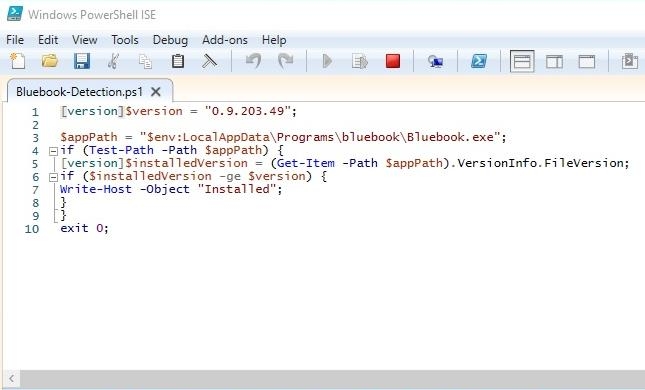
Create a detection script that will compare the file version of the application’s executable. The path will point inside of the user’s profile so of course we will use variables again. Feel free to use and modify the script below. Remember this is a powershell script, so you must environment variable use $env.

blank

Package these files up with Intune’s Win32 packager and deploy to your users.

Categories
Azure Intune / MEM

Configure Windows LAPS in Microsoft Intune

Microsoft recently released Windows LAPS to the public for a preview. Local Administrator Password Solution is a security solution to randomize and rotate local administrator(s) passwords. This solution was widely used in the Enterprise to prevent lateral movement throughout the environment due to administrator accounts typically having the same password on all devices. LAPS was previously an additional install and AD schema extension. Microsoft has decided to build this security feature into recent releases Windows 10 and 11. The following guide you to setting up a LAPS policy in Microsoft Intune.

1. Navigate to Azure Active Directory in Entra. Under Devices, open All Devices and click Device settings. Set “Enable Azure AD Local Administrator Password Solution (LAPS) (Preview)” to Yes.

blank

2. Navigate to Endpoint Security in Intune. Select Account Protection under Manage. Create a new policy for Windows 10 and later platform and Local admin password solution (Windows LAPS) profile. Do the usual; name and description.

blank

3. Configure your LAPS settings to align with your organization’s strategy.

blank


Tips:

Legacy LAPS and Windows LAPS do not play well together, so chose which one your organization will use. Microsoft recommends migrating Windows LAPS using the emulation mode.

Backup Directory must be compatible with join type obviously; Azure AD Join devices can’t write to an on-prem Active Directory.

Setting the Backup Directory to Disabled will assign a password that you won’t know. Some will use this option until the need arises in which they add the device to a different policy that will assign a password thats backed up. Those feel this is more secure.

LAPS does not create the administrator account yet. This account must be created on the device before the policy is applied. For this reason, some are opting to use the **built-in Administrator account which has been viewed as bad practice for some time (this account was usually assigned a random password and disabled in Windows).

Post Authentication Actions instructs what should happens after a password is used. How secure do you want to be? (1) Reset password, (3) Reset password and terminate any of that accounts sessions, (5) Reset password and reboot the device.

Post Authentication Reset Delay is how long after the LAPS password is used will the Post Authentication Actions run.

blank

4. After your settings are configured, you are ready to select you device groups you wish the LAPS policy to apply to. Targeting devices are recommended though the capability to target users is available. If you target users you may potentially have LAPS passwords rotating frequently.

** If using the built-in Administrator account, you will need to enable it. Create a configuration profile that contains the Setting “Accounts Enable Administrator Account status” which is found under Local Policies Security Options. Set this to Enabled and deploy it to your target devices/groups.blank


Categories
Azure Intune / MEM

Dynamic AAD groups not syncing

If you use the group membership feature in dynamic AAD groups (still in preview), make sure you stay on top up of what groups you delete. If you delete a group that is part of the dynamic membership it will cause the group to not update.

Remove the group from the evaluation to fix the issue.

Categories
Intune / MEM SCCM / MECM

Revoked workloads

Background

Approximately a year before the pandemic started, I worked with Microsoft Fast Track to set up my organization’s Intune environment and co-management for our laptops. This went well and functioned as expected in my testing. I soon started asking my higher-ups if we could work on migrating group policies to configration profiles and start utilizing Intune capabilities. There was no interest and Intune fell by the wayside besides me using it to deploy required apps.

Fast forward to COVID-19. No always-on VPN, no cloud management gateway, but we did have a neglected Intune environment. There was one problem; devices had their Intune workloads revoked. This was an undocumented result of Configuration Manager clients not communicating with SCCM for a while. I convinced management that cloud management gateway was much needed during these times. After our cloud management gateway was setup and working, we needed to get the co-managed clients talking to their management point again. They don’t know about the new CMG of course and with Intune workloads being revoked, the only function that worked in Intune is.. PowerShell scripts. 😃

Solution

To get the endpoints back functioning, Intune workloads need to be reset and SCCM client with the CCMHostname and certificates deployed. Deploy the new SCCM app first, so the endpoint will install right after the workloads are reset.

To reset the workloads via Intune, deploy a PowerShell script that changed the flag value in the registry and restart Intune’s service. The value is the sum of the Intune workloads.

Set-ItemProperty -Path HKLM:\SOFTWARE\Microsoft\CCM -Name CoManagementFlags -Value 111
Restart-Serviec IntuneManagementExtension -Force

CapabilityWorkload
8193All Workloads with SCCM
2Compliance Policies
4Resource access Policies
8Device Configuration
16Windows Updates Policies
4128Endpoint Protection
64Client Apps
128Office Click-to-Run Apps
Current (Configuration Manager 2111 and Later)
CapabilityWorkload
1All Workloads with SCCM
2Compliance Policies
4Resource access Policies
8Device Configuration
16Windows Updates Policies
32Endpoint Protection
64Client Apps
128Office Click-to-Run Apps
Legacy (Configuration Manager 2107 and previous)

If you want to verify if the endpoint has been configured for the CMG, look in the registry for CMGFQDN under the HKLM:\Software\Microsoft\CCM key.