
There are two contexts when installing applications: User and System. The application either installs within the USER’s profile such as %LocalAppData% or to a SYSTEM directory that everyone can access like %ProgramFiles%.
Recently I was informed that we would be using CollegeBoard’s Bluebook for testing. CollegeBoard apps haven’t been my favorite to work with in the past, but that’s another story. Looking over the application’s requirement page, it must be installed in user profiles with user given full read/write permission to the directory for auto updates.
Test silent install in a VM, update AppLocker policy if being used, gather uninstall information if written to the registry, and test silent uninstall in a VM.
Create a simple install.cmd file which contains the silent install command.

Create a simple uninstall.cmd file which contains the silent uninstall command. More than likely the uninstall file will be located in the user’s profile. Use environment variables like %APPDATA%.
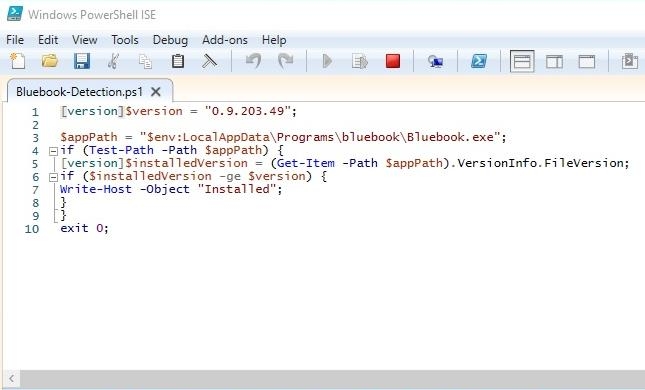
Create a detection script that will compare the file version of the application’s executable. The path will point inside of the user’s profile so of course we will use variables again. Feel free to use and modify the script below. Remember this is a powershell script, so you must environment variable use $env.
Package these files up with Intune’s Win32 packager and deploy to your users.